<?xml version="1.0" encoding="UTF-8"?><rss xmlns:dc="http://purl.org/dc/elements/1.1/" xmlns:content="http://purl.org/rss/1.0/modules/content/" xmlns:atom="http://www.w3.org/2005/Atom" version="2.0"><channel><title><![CDATA[Monitor control command issue]]></title><description><![CDATA[<p dir="auto">Hello, Russ.<br />
I have been setup my business and now I am trying to control each monitors.<br />
Each bay has each monitor with a projector.</p>
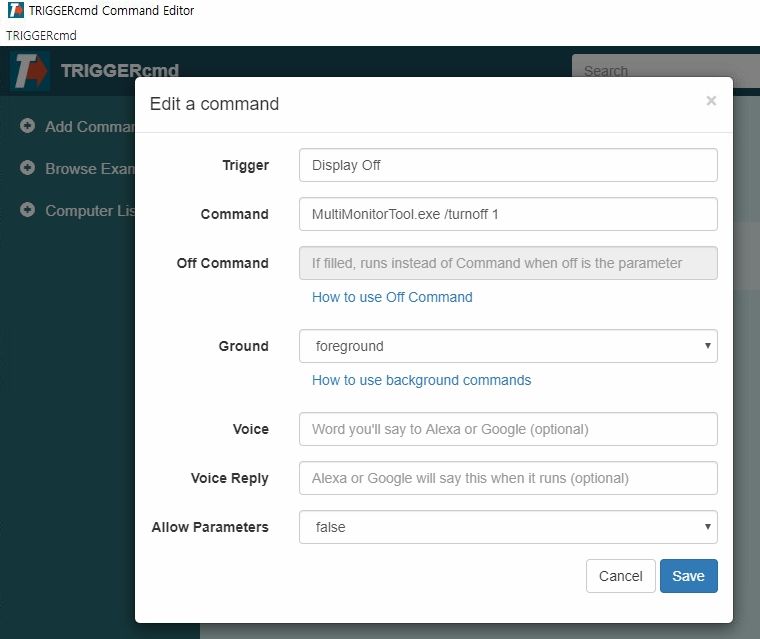
<p dir="auto">I input a command as you wrote it down for me.<br />
However the commnd doesn't work.<br />
Would you please look it what was wrong and correct for me?</p>
<p dir="auto">Thank you.</p>
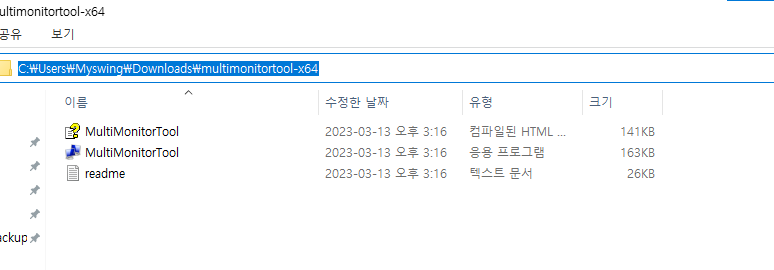
<p dir="auto"><img src="/forum/assets/uploads/files/1697823581655-01.png" alt="01.png" class=" img-fluid img-markdown" /> <img src="/forum/assets/uploads/files/1697823581715-02.jpg" alt="02.jpg" class=" img-fluid img-markdown" /></p>
]]></description><link>https://www.triggercmd.com/forum/topic/2725/monitor-control-command-issue</link><generator>RSS for Node</generator><lastBuildDate>Sun, 12 Apr 2026 12:13:31 GMT</lastBuildDate><atom:link href="https://www.triggercmd.com/forum/topic/2725.rss" rel="self" type="application/rss+xml"/><pubDate>Fri, 20 Oct 2023 17:40:06 GMT</pubDate><ttl>60</ttl><item><title><![CDATA[Reply to Monitor control command issue on Sat, 21 Oct 2023 01:44:29 GMT]]></title><description><![CDATA[<p dir="auto"><a class="mention plugin-mentions-user plugin-mentions-a" href="https://www.triggercmd.com/forum/uid/19879">@h6477801471</a>, ok, if you put MultiMonitorTool.exe in d:\tools, then make your command this:</p>
<pre><code>d:\tools\MultiMonitorTool.exe /TurnOff 1
</code></pre>
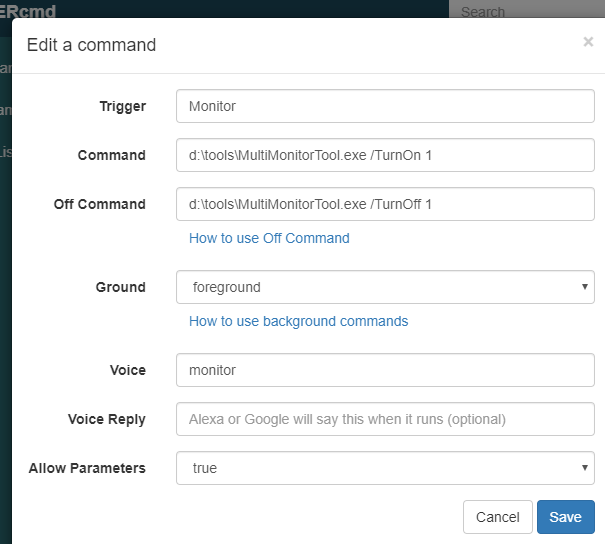
<p dir="auto">Or you could do this so you can say, <strong>Alexa, turn monitor off</strong>, and <strong>Alexa, turn monitor on</strong>.<br />
<img src="/forum/assets/uploads/files/1697852080157-978faec6-3792-4b24-83b9-f78eb6bed2a6-image.png" alt="978faec6-3792-4b24-83b9-f78eb6bed2a6-image.png" class=" img-fluid img-markdown" /></p>
<p dir="auto">If you specify the path (d:\tools) to the .exe file in your command you don't have to put d:\tools in your PATH variable.</p>
<p dir="auto">If you want, you could turn the projector on and off with a smart plug instead.  You'd create 2 commands, and associate each one with an Alexa routine that flips the smart switch off and on.  The problem is I don't think you're supposed to abruptly turn projectors off because the fan needs to run to cool the bulb down.  I'm not sure though if that's still a concern these days.</p>
<p dir="auto">I made a video about how to run Alexa routines when you trigger your commands here:<br />
<a href="https://www.youtube.com/watch?v=nrqj-OwDpGE" rel="nofollow ugc">https://www.youtube.com/watch?v=nrqj-OwDpGE</a></p>
<p dir="auto">Also I forgot to ask, does it work if you run the command manually from a cmd window?</p>
]]></description><link>https://www.triggercmd.com/forum/post/7455</link><guid isPermaLink="true">https://www.triggercmd.com/forum/post/7455</guid><dc:creator><![CDATA[Russ]]></dc:creator><pubDate>Sat, 21 Oct 2023 01:44:29 GMT</pubDate></item><item><title><![CDATA[Reply to Monitor control command issue on Sat, 21 Oct 2023 00:07:27 GMT]]></title><description><![CDATA[<p dir="auto"><a class="mention plugin-mentions-user plugin-mentions-a" href="https://www.triggercmd.com/forum/uid/1">@Russ</a></p>
<p dir="auto">Thank you so much.<br />
But it still doesnt work.</p>
<p dir="auto">I created "tools" folder at D drive and moved software but no response at all.</p>
<p dir="auto">I run an indoor Golf simulator business, and I was hoping to turn off the monitor when the reservation time ran out because people didn't stop using it. However, I can do so if I have various ideas such as turning the projector on and off or lock the screen.<br />
May I ask if you have any good ideas with using triggercmd?</p>
]]></description><link>https://www.triggercmd.com/forum/post/7454</link><guid isPermaLink="true">https://www.triggercmd.com/forum/post/7454</guid><dc:creator><![CDATA[h6477801471]]></dc:creator><pubDate>Sat, 21 Oct 2023 00:07:27 GMT</pubDate></item><item><title><![CDATA[Reply to Monitor control command issue on Fri, 20 Oct 2023 21:53:51 GMT]]></title><description><![CDATA[<p dir="auto"><a class="mention plugin-mentions-user plugin-mentions-a" href="https://www.triggercmd.com/forum/uid/19879">@h6477801471</a>, that command looks correct, but can you confirm the MultiMonitorTool.exe tool is in a folder that's referenced by your PATH environment variable?</p>
<p dir="auto">If you're not familiar with how that works, please check out <a href="https://www.youtube.com/watch?v=gb9e3m98avk" rel="nofollow ugc">this video</a>.</p>
<p dir="auto">I just tried this command and it worked for me because I put MultiMonitorTool.exe in my <strong>d:\tools</strong> folder and that folder is in my PATH.</p>
<pre><code>MultiMonitorTool.exe /TurnOff 2
</code></pre>
<p dir="auto">You could also consider using this command, but again, you'll need to put nircmd.exe in a folder in your PATH.</p>
<pre><code>nircmd monitor off
</code></pre>
<p dir="auto">I created this video on how to do that.<br />
<a href="https://youtu.be/xub4pjenLVs?si=xBsYZtJwXg_V8qTn&amp;t=40" rel="nofollow ugc">https://youtu.be/xub4pjenLVs?si=xBsYZtJwXg_V8qTn&amp;t=40</a></p>
]]></description><link>https://www.triggercmd.com/forum/post/7451</link><guid isPermaLink="true">https://www.triggercmd.com/forum/post/7451</guid><dc:creator><![CDATA[Russ]]></dc:creator><pubDate>Fri, 20 Oct 2023 21:53:51 GMT</pubDate></item></channel></rss>